
GTA 6 Crashing on PS5 or Xbox? 9 Fixes That May Help
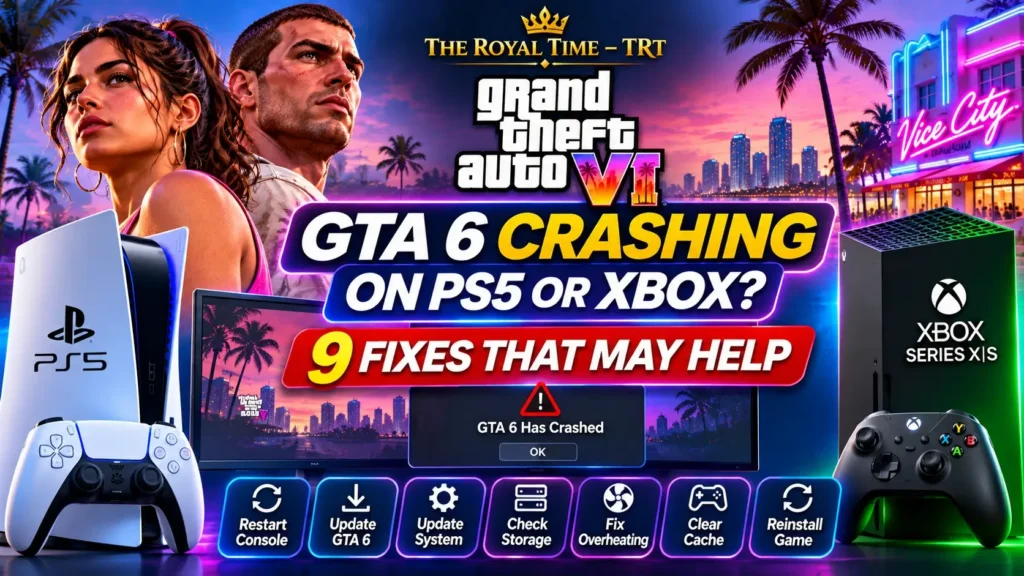
Is GTA 6 crashing on your PS5 or Xbox Series X|S? Whether the game freezes during a mission, closes unexpectedly or refuses to launch, the problem can interrupt your experience in Vice City.
Grand Theft Auto VI officially launched on November 19, 2026. As players explore Rockstar’s new open world, some may encounter technical problems involving game updates, software errors, storage or console hardware.
A crash doesn’t necessarily mean your console is damaged. Sometimes a restart or software update can help. In other cases, the problem may require additional troubleshooting.
Before trying expensive repairs or deleting saved data, work through these nine practical fixes.
For launch details, supported platforms and pricing, you can also read our GTA 6 release guide for PS5 and Xbox.
Why Does GTA 6 Keep Crashing?
Several different problems can cause a game to freeze, close or fail to start.
Common possibilities include outdated game files, temporary software errors, installation problems, insufficient storage and console-related faults.
A cooling problem may also cause a console to shut down during demanding gameplay.
However, not every crash indicates overheating or damaged hardware.
First, identify what happens when GTA 6 stops working:
| Symptom | What to check first |
|---|---|
| Game closes to dashboard | Updates and application errors |
| Game freezes but console stays on | Restart, updates and cache |
| Console turns off unexpectedly | Ventilation, power and overheating |
| Game won’t launch | Installation, storage and system updates |
| Several games crash | Possible console-wide issue |
Use the symptoms to decide where to begin.
1. Restart Your PS5 or Xbox Completely
A full restart is one of the simplest troubleshooting steps.
Temporary software problems can affect an application after long gaming sessions or when a console resumes from standby.
Restarting allows the system to reload its operating software and close processes that may have stopped responding.
On PS5:
- Press the PS button on your controller.
- Open the Power menu.
- Select Restart PS5.
- Allow the console to restart normally.
- Launch GTA 6 again.
On Xbox Series X|S:
- Press the Xbox button to open the guide.
- Go to Profile & system.
- Open Power.
- Select Restart console.
- Confirm the restart.
After restarting, test the game again.
If it crashes at exactly the same point, move to the next step.
2. Check for GTA 6 Game Updates
Rockstar may release patches to address bugs, stability problems and other technical issues.
An outdated game version could contain a problem that a newer update addresses.
Check for available updates before changing advanced console settings.
Update GTA 6 on PS5
- Highlight GTA 6 on the home screen.
- Press the Options button.
- Select Check for Update.
- Install any available update.
- Restart the game after installation.
Update GTA 6 on Xbox
- Open My games & apps.
- Select Manage.
- Open Updates.
- Check whether GTA 6 has an available update.
- Install it before playing again.
If you cannot find a new patch, don’t assume your game is missing an update. The latest version may already be installed.
3. Update Your Console System Software
Games depend on the console’s operating software to manage storage, memory and other functions.
Running outdated system software can sometimes create compatibility problems.
Both Sony and Microsoft regularly release updates to improve console stability and security.
On PS5: Open Settings → System → System Software → System Software Update and Settings.
On Xbox Series X|S: Open Settings → System → Updates.
Install available updates and restart the console when prompted.
Avoid switching off the system or disconnecting its power during an update.
Afterward, launch GTA 6 and check whether the issue continues.
4. Check Your Available Storage
Low storage space can interfere with installations, updates and some system operations.
Although a game may already be installed, your console still needs adequate free space for normal operation and future patches.
Start by checking the available storage.
PS5: Go to Settings → Storage.
Xbox: Open My games & apps → Manage → Storage devices.
If your storage is nearly full, remove games or applications you no longer use.
You can also move compatible content to another supported storage device.
Remember that PS5 games must run from compatible internal console storage or an appropriately installed M.2 SSD, not directly from a USB extended-storage drive.
Don’t delete saved-game data simply to create space.
If the game repeatedly fails during installation, check Rockstar’s official installation guidance before attempting further repairs.
5. Check for Overheating and Poor Ventilation
A demanding game can make your console work harder, but that doesn’t automatically mean the system is overheating.
Sony notes that PS5 cooling fans may become louder during certain games.
A more serious problem may exist if the console displays a temperature warning, repeatedly shuts down or becomes unusually hot.
Try these precautions:
- Place the console in a well-ventilated location.
- Keep air vents clear of furniture and other objects.
- Avoid enclosing the system inside a tight cabinet.
- Check for visible dust around the ventilation openings.
- Allow the console to cool after a genuine overheating warning.
If you need to clean the console, switch it off, disconnect the power and follow the manufacturer’s cleaning instructions.
Avoid pushing objects into vents or opening internal hardware without appropriate guidance.
Important: If the PS5 shuts down repeatedly, don’t continue forcing it to run GTA 6. Check the hardware and seek professional support when necessary.
6. Clear the PS5 Cache or Rebuild Its Database
If GTA 6 continues freezing on PS5, you can try Sony’s Safe Mode troubleshooting tools.
These tools address certain software and storage-related problems.
How to Enter PS5 Safe Mode
- Turn off the PS5 completely.
- Press and hold the console’s power button.
- Release it after the second beep, which occurs roughly seven seconds later.
- Connect your controller using a USB cable.
- Press the PS button.
- Select Clear Cache and Rebuild Database.
You can first try Clear System Software Cache.
If the problem continues, consider Rebuild Database.
Rebuilding the database scans the system’s content and creates a new database.
These options differ from resetting the entire console.
Warning: Do not select Reset PS5 or Reset PS5 (Reinstall System Software) as a routine troubleshooting step. Those options can delete user data.
Back up important data before using advanced recovery features.
7. Clear Temporary Cache on Xbox Series X|S
Xbox consoles also maintain temporary system data that can sometimes contribute to loading problems or freezes.
Rockstar provides guidance for clearing the system cache on Xbox Series X|S.
Start with a normal restart.
If that doesn’t help, follow Rockstar’s official Xbox Series X|S cache-clearing instructions.
Avoid confusing temporary cache clearing with deleting saved games.
Do not choose options that remove saved data unless you understand their consequences and have an appropriate backup.
After completing the supported troubleshooting procedure, launch GTA 6 again.
If other Xbox games also freeze, investigate the console itself rather than focusing only on GTA 6.
8. Reinstall GTA 6 If Other Fixes Fail
If the game consistently crashes after updates and basic troubleshooting, its installation may have a problem.
Reinstalling can help replace damaged or incomplete game files.
However, this step takes longer than restarting or updating.
Before proceeding, confirm that you have a reliable backup or cloud synchronization of your saved progress.
Reinstall GTA 6 on PS5
- Highlight GTA 6 on the home screen.
- Press the Options button.
- Select Delete.
- Open your Game Library.
- Find GTA 6 and download it again.
Reinstall GTA 6 on Xbox
- Open My games & apps.
- Highlight GTA 6.
- Press the Menu button.
- Select Manage game and add-ons.
- Choose Uninstall all for the game’s installation.
- Reinstall GTA 6 from your owned games.
Take care not to delete cloud or local saved-game data while managing the installation.
If a fresh installation crashes in the same way, the problem may involve a specific game bug or another console issue.
9. Test Another Game and Contact Support
If none of the previous steps helps, test another demanding game on the same console.
This simple comparison can provide useful clues.
If only GTA 6 crashes: The problem may involve the game installation, a specific software issue or a particular gameplay situation.
If several games crash: The console may have a broader software, cooling, storage or hardware problem.
You can also note whether the crash occurs during the loading screen, at a specific mission or after a certain period of gameplay.
Before contacting support, record:
- Your console model.
- Any displayed error code.
- The installed game and system software versions.
- When the crash happens.
- Which troubleshooting steps you’ve already tried.
Rockstar maintains a dedicated Grand Theft Auto VI support center.
For PlayStation hardware or software issues, contact Sony through its official support service. Xbox users can contact Microsoft support.
If the console repeatedly loses power, overheats or crashes across multiple games, a qualified repair assessment may be appropriate.
How to Fix GTA 6 Error CE-108255-1 on PS5
Some PS5 players may encounter error code CE-108255-1.
Sony identifies this code as an error involving a game or application.
Its official guidance recommends checking for a game update.
Start with the following approach:
- Check whether GTA 6 has an available update.
- Restart the PS5.
- Update the console system software.
- Follow Sony’s troubleshooting guidance if the error continues.
Don’t assume the error code automatically means your SSD, motherboard or graphics hardware has failed.
You can review Sony’s official CE-108255-1 troubleshooting page for the latest instructions.
GTA 6 Freezing vs Crashing vs Console Shutting Down
These problems can look similar, but understanding the difference helps you avoid unnecessary repairs.
Game freezing: The picture stops responding, but the console stays powered on.
Game crashing: GTA 6 closes unexpectedly and returns you to the home screen or displays an error message.
Console shutting down: The entire PS5 or Xbox turns off or restarts without normal user input.
A frozen game often points toward an application or system issue.
An unexpected power shutdown deserves additional attention because power delivery, cooling and hardware faults may be involved.
None of these symptoms alone confirms a particular cause.
When Should You Stop Troubleshooting and Seek Repairs?
Basic troubleshooting makes sense when only one game occasionally freezes.
However, repeated hardware-related symptoms deserve professional attention.
Consider contacting console support or a qualified repair specialist if your device:
- Shuts down repeatedly while gaming.
- Displays recurring temperature warnings.
- Crashes across several different games.
- Makes unusual mechanical noises.
- Fails to start normally after a supported recovery procedure.
Don’t attempt motherboard repairs, power-supply repairs or advanced internal cleaning without suitable training.
A safe diagnosis is more useful than replacing parts based on guesswork.
Frequently Asked Questions
Why does GTA 6 keep crashing on PS5?
Possible causes include game bugs, outdated software, installation problems and console-related issues. Start by checking updates.
How do I fix GTA 6 freezing on Xbox Series X?
Restart the console, install available updates and follow Rockstar’s official Xbox troubleshooting guidance.
Does GTA 6 make the PS5 overheat?
A demanding game can increase system load, but a crash alone does not prove overheating. Check ventilation and temperature warnings.
What does CE-108255-1 mean on PS5?
Sony identifies it as a game or application error and recommends checking for a game update.
Will reinstalling GTA 6 delete my progress?
Deleting the game application doesn’t normally mean deleting saved data, but you should verify your backups and avoid selecting saved-data deletion options.
Can low storage cause GTA 6 problems?
Insufficient storage can interfere with game installations and updates. Check available space and storage health.
Should I reset my PS5 to fix GTA 6?
No. A factory reset should not be an early troubleshooting step because it can delete user data.
What if GTA 6 crashes only during one mission?
Record the exact mission and circumstances, check for updates and report a repeatable problem to Rockstar Support.
Final Thoughts
If GTA 6 keeps crashing on PS5 or Xbox, start with the simplest solutions before considering repairs.
Restart your console, update the game and system software, check your storage and confirm that the device has proper ventilation.
For PS5 players, Sony’s Safe Mode tools may help with certain software issues. Xbox users can follow Rockstar’s console-specific cache and troubleshooting guidance.
Reinstalling the game may help when installation files are damaged, but always protect your saved progress first.
If crashes continue across multiple games or your console repeatedly shuts down, investigate possible hardware problems.
The best fix depends on the actual cause. A careful, step-by-step approach can save time, protect your game data and prevent unnecessary repair costs.
The Royal Time – TRT
Truth. Technology. Trends.

